

Justin
4:54
Optimize images, icons, and interactions for SEO and AEO
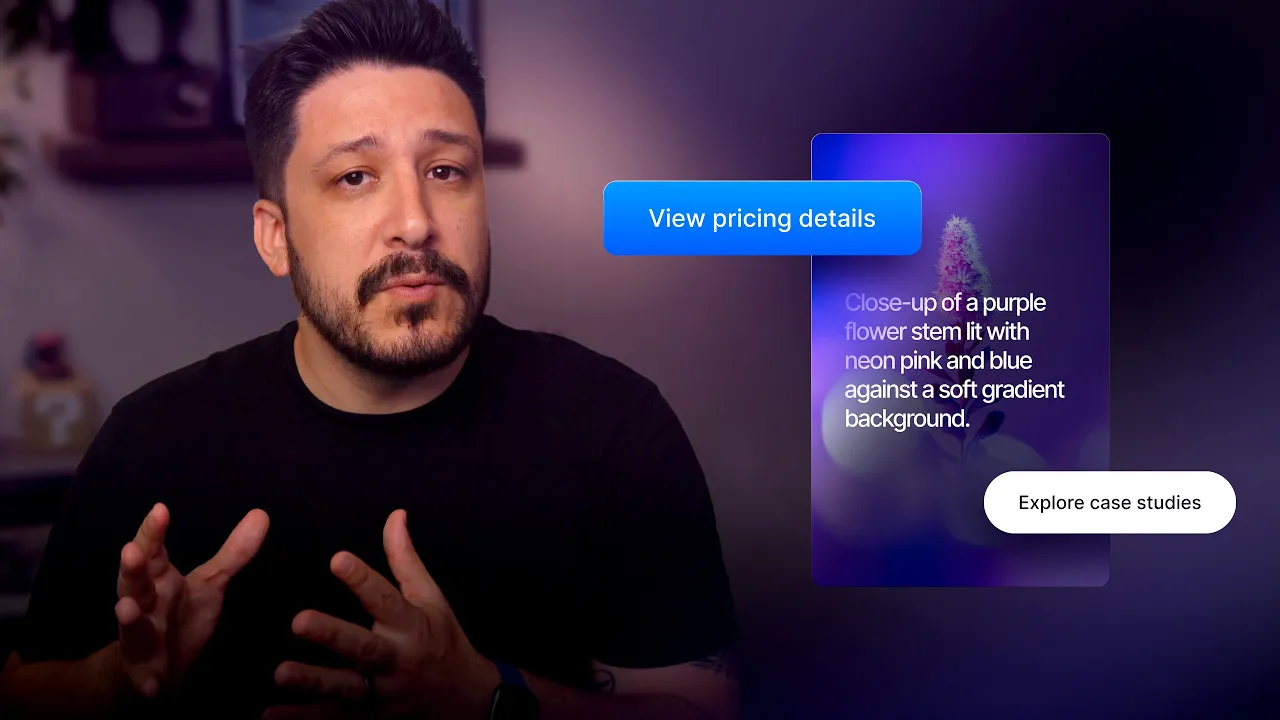
Learn how to optimize images, icons, and interactions for SEO. When someone can’t see your site, whether they’re using a screen reader or their bandwidth is limited, the way you describe your images and icons become incredibly important. You will configure the relevant site or page settings, inspect the result, and keep the update ready for publishing.
Lesson details
Compress images, use the dimensions the layout needs, and add specific alt text when an image communicates information. Give icon-only controls accessible labels, and make sure interactive elements expose a clear role and state.
Review the page without images and with keyboard navigation to catch missing context. Keep decorative media out of the accessibility tree, avoid oversized files, and test hover or scroll interactions with reduced motion enabled.
Judge the change on the published URL as well as in preview. Search engines receive the final markup, response, redirects, and metadata, so a canvas check alone cannot confirm the result.
Frequently asked questions
How do I optimize images, icons, and interactions for SEO?
Learn how to optimize images, icons, and interactions for SEO. When someone can’t see your site, whether they’re using a screen reader or their bandwidth is limited, the way you describe your images and icons become incredibly important. You will configure the relevant site or page settings, inspect the result, and keep the update ready for publishing.
What does this lesson cover?
The lesson covers the settings and steps used to optimize images, icons, and interactions for SEO. See ARIA Label. Follow the demonstrated order in your project and review each change on the canvas before moving to the next step.
What should I verify after changing SEO settings in Framer?
Check the page title, description, URL, heading structure, images, and links that the lesson covers. Preview the page and confirm that the live-facing settings match your intent. Publishing is a separate step, so you can review the configuration before the change reaches visitors or search engines.
Do these settings affect every page in Framer?
Some settings apply to one page, while site settings can affect the whole project. Check the scope of each control shown in the lesson before changing it. Review page-specific metadata and the global site configuration separately so one update does not overwrite another page’s intended search information.
What should I review after I optimize images, icons, and interactions for SEO?
Review the exact pages and elements changed by the workflow. Confirm that copy, links, accessibility, responsive behavior, and interaction states still work as intended. Use preview for the final check and keep publishing separate from editing so you can fix problems before visitors see the update.