

Benjamin
2:52
Use Workspace Plugins in Framer Enterprise
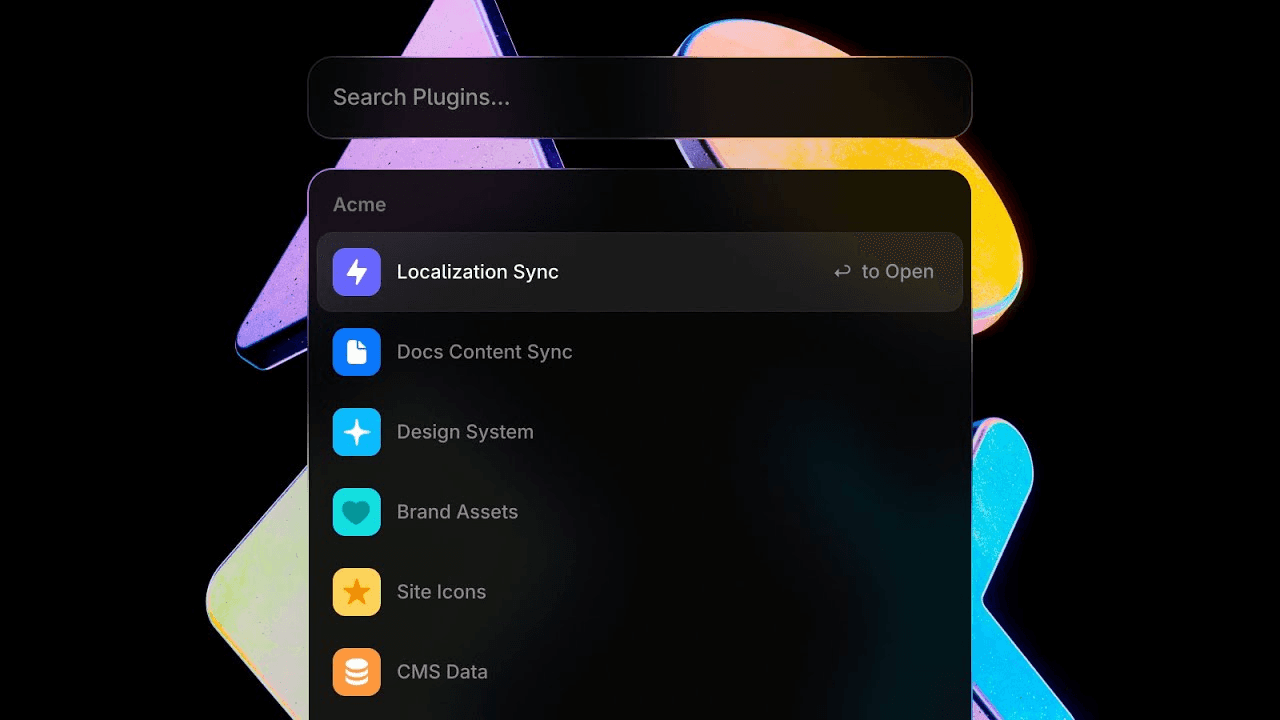
Learn how to use Workspace Plugins in Framer Enterprise. Workspace Plugins are Plugins that are completely private to the Projects in your Workspace, and are already powering some of the largest sites in Framer. You will use the canvas and layout controls to make the result fit the rest of your design system.
Lesson details
Use Workspace Plugins to give an Enterprise workspace an approved set of tools for design, content, and site operations. Review the Plugin’s permissions and purpose before making it available to members, then manage access from the workspace settings.
Keep the shared list small enough that collaborators know which tool to use. Revisit permissions when a Plugin changes ownership or no longer supports the workflow it was approved for.
Test with the content the page will ship. Longer labels, translated copy, and missing media reveal whether the design rules are flexible enough for the real site.
Frequently asked questions
How do I use Workspace Plugins in Framer Enterprise?
Learn how to use Workspace Plugins in Framer Enterprise. Workspace Plugins are Plugins that are completely private to the Projects in your Workspace, and are already powering some of the largest sites in Framer. You will use the canvas and layout controls to make the result fit the rest of your design system.
What does this lesson cover?
The lesson covers the settings and steps used to use Workspace Plugins in Framer Enterprise. You will use the canvas and layout controls to make the result fit the rest of your design system. Follow the demonstrated order in your project and review each change on the canvas before moving to the next step.
How should I test this layout across breakpoints?
Preview the page at wide, medium, and narrow widths, then resize between those points. Check wrapping, alignment, sizing, and reading order instead of testing only preset device widths. Adjust the Frames, Stacks, grid settings, or text controls covered in the lesson when the layout starts to break.
Can I use this layout workflow across breakpoints?
Yes. Preview the page at wide, medium, and narrow widths, then resize between those points. Check wrapping, alignment, sizing, and reading order instead of testing only preset device widths. Adjust the Frames, Stacks, grid settings, or text controls covered in the lesson when the layout starts to break.
What should I review after I use Workspace Plugins in Framer Enterprise?
Review the exact pages and elements changed by the workflow. Confirm that copy, links, accessibility, responsive behavior, and interaction states still work as intended. Use preview for the final check and keep publishing separate from editing so you can fix problems before visitors see the update.
Continue watching
Load more