Move a project to another workspace
Learn how to move a project between workspaces and what happens to active Site plans.
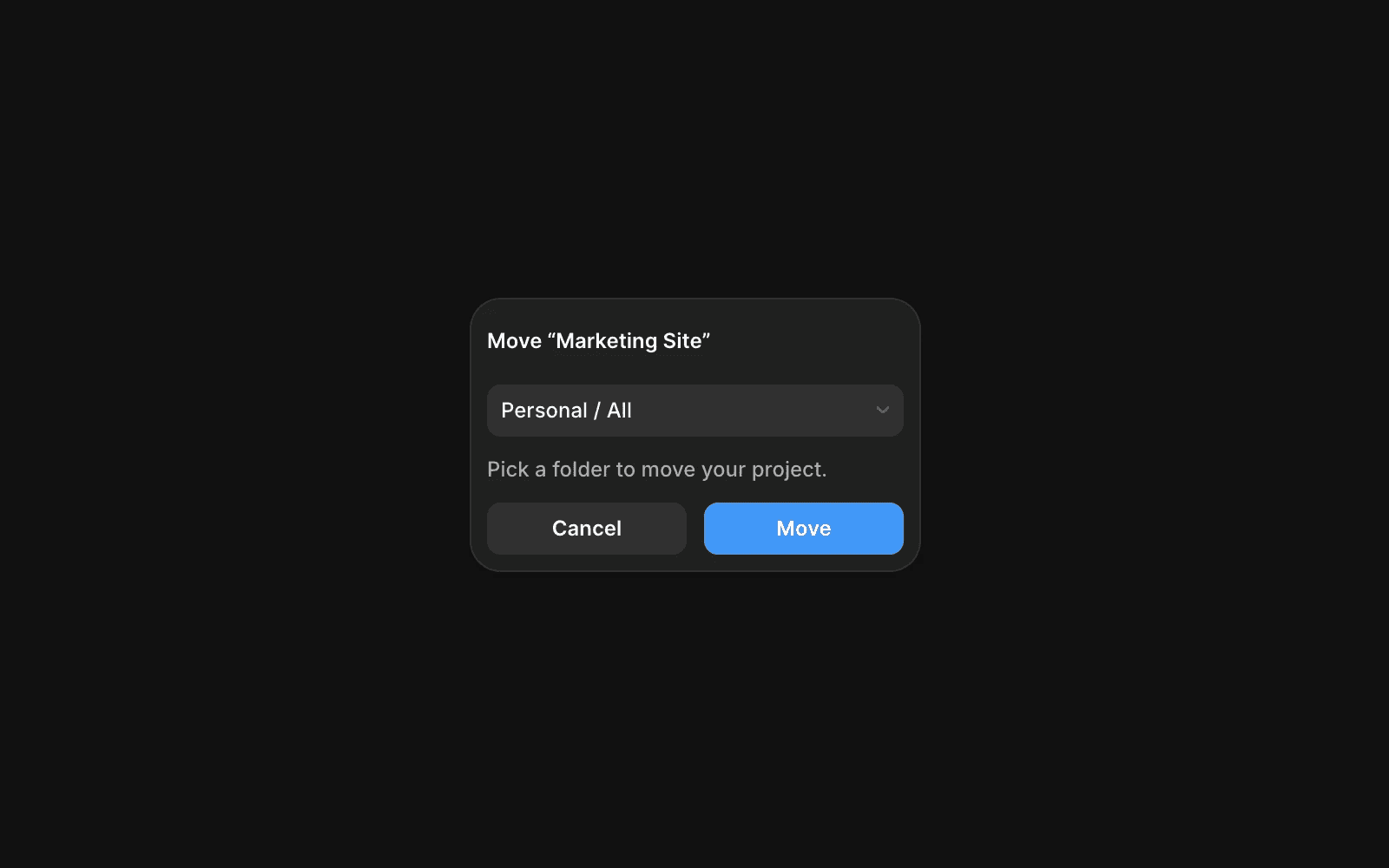
If you’ve created or duplicated a project in the wrong workspace, you can move it to another workspace in just a few steps.
Move a project
To move a project to a different workspace:
Open the Dashboard.
Locate the project you want to move.
Click the three-dot menu icon next to the project name.
Select Move.
Choose the destination workspace.
Click Move to confirm.
The project will be transferred to the selected workspace.
What happens to active subscriptions?
Projects with active subscriptions can be moved to another workspace.
When a project is moved:
The existing subscriptions is canceled.
Any unused value from the subscription is converted into account credit.
The credit remains in the original workspace and can be applied to future invoices within that workspace.
If the project requires a paid subscriptions after the move, you’ll need to activate a new subscriptions in the destination workspace.
Before you move a project
Consider the following before moving a project:
Workspace membership and permissions may differ between workspaces.
Subscription credits do not move with the project.
Billing is managed separately for each workspace.
FAQ
Can I move a project with an active subscription?
Yes. The project can be moved, but the existing subscription will be canceled as part of the transfer.
What happens to the unused portion of my subscription?
The unused value is converted into account credit and remains in the original workspace.
Does account credit move with the project?
No. Credits stay in the workspace where they were originally generated and can only be used for future invoices in that workspace.
Updated
