Organizations, Workspaces, and Folders
In this guide, we explain how the Enterprise Plan changes the team hierarchy in Framer and outline the roles of organizations, workspaces, folders, and projects.
Organization
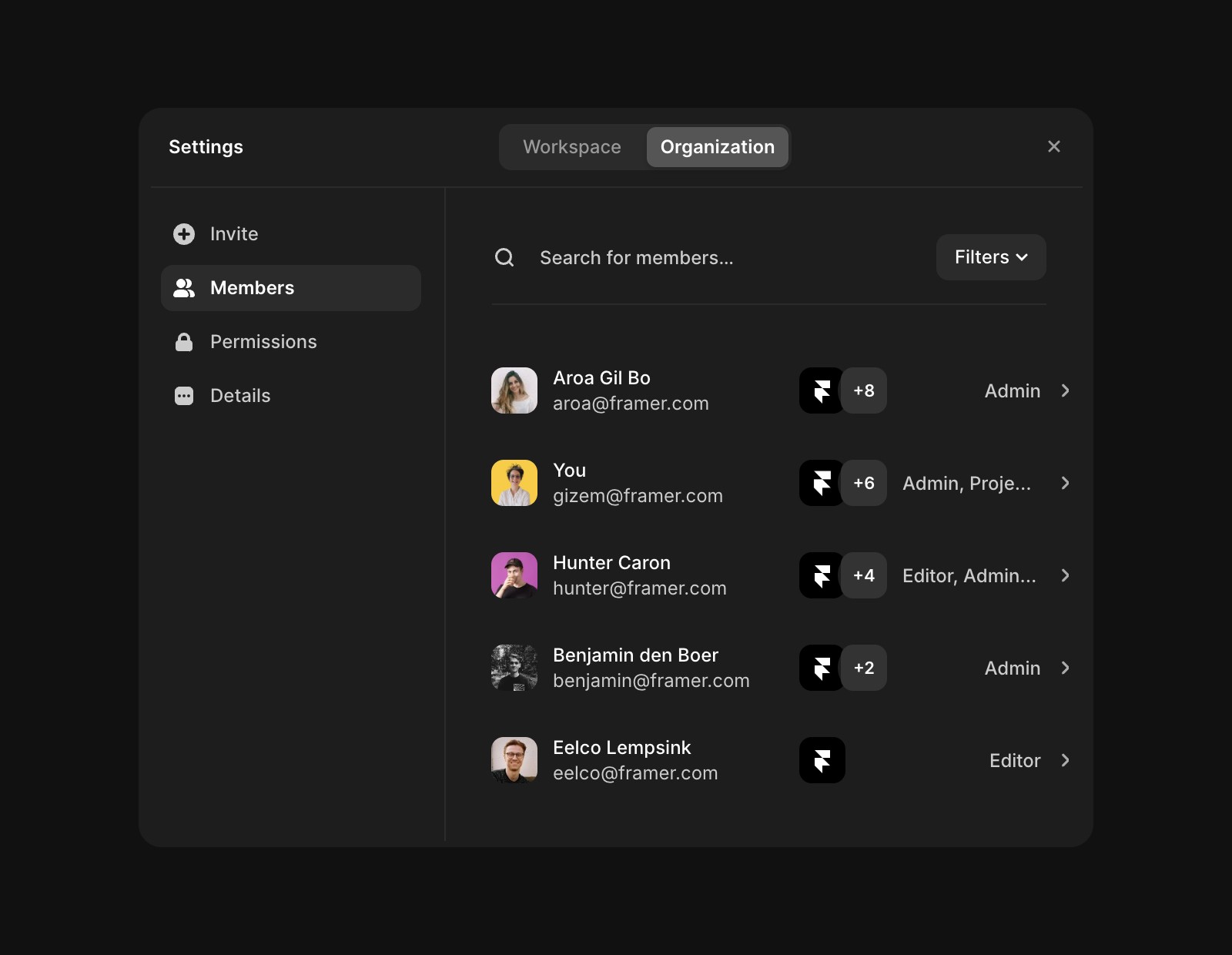
An organization represents the highest level of hierarchy in Framer, designed for companies, large teams, or institutions. It acts as a centralized hub for all workspaces and projects, enabling streamlined management.
Key features of organizations:
Centralized billing: Covers all workspaces and members under one plan, with no duplicate billing for users in multiple workspaces.
User management: Add/remove users, assign roles, and monitor access across all workspaces. Learn more here.
Permissions and access controls: Standardize security and access settings across workspaces.
Organization details: Update the logo and name, and view workspace counts.
Workspaces
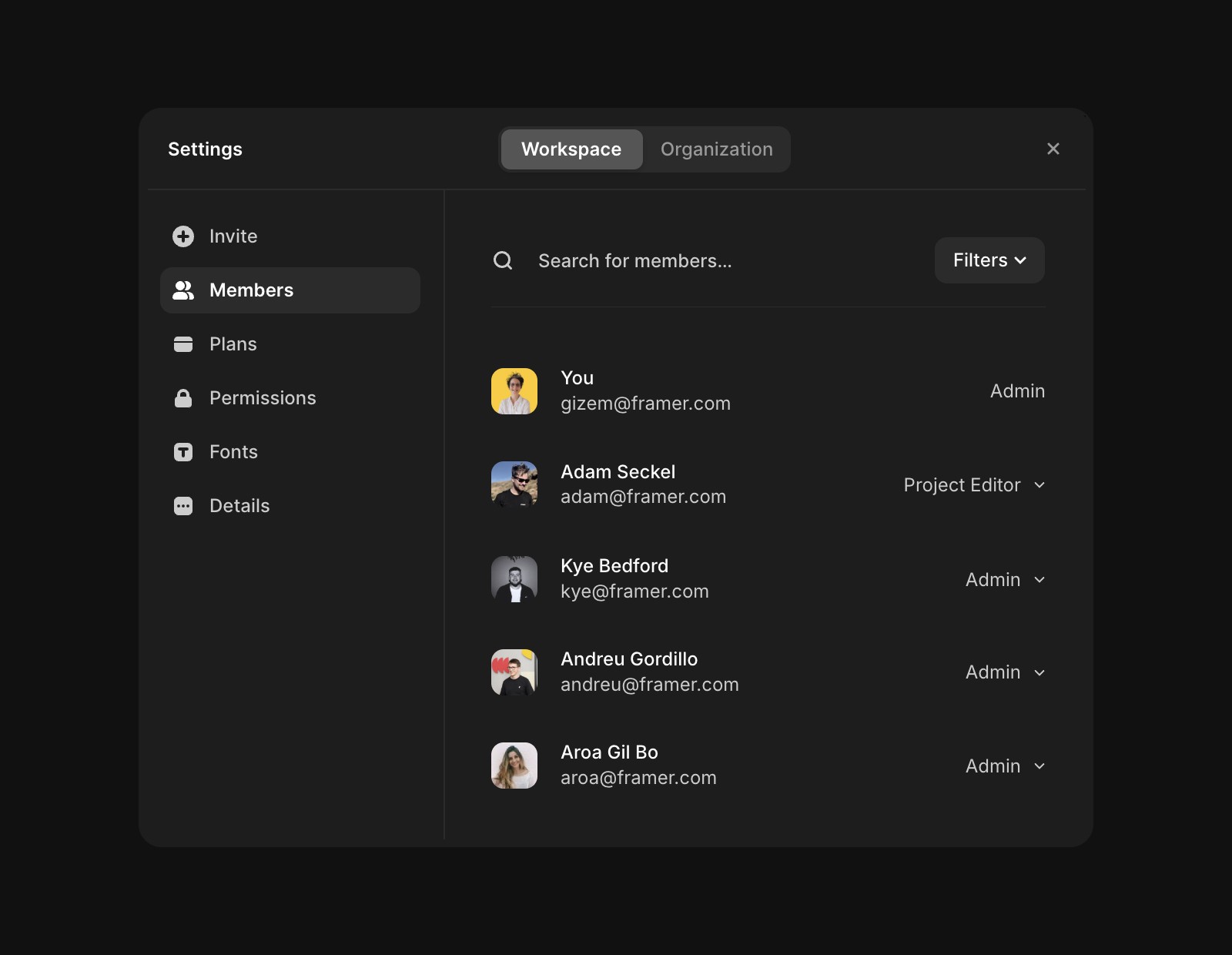
Workspaces exist within an organization and are collaborative areas for managing projects. Each workspace can host its own members, with roles assigned at both workspace and project levels.
Key features of Enterprise workspaces:
Enhanced features: Access to custom code, canonical URLs, and higher limits for all projects.
Custom fonts: Upload fonts in workspace settings to use them across all projects.
Team library: Share components across projects using the team library.
Roles and permissions: Assign specific roles for members at workspace and project levels.
Folders
Folders help you organize projects within a workspace.
How to create and manage folders:
Click the “+ New Folder…” button in the right-hand sidebar.
Enter a folder name (start with an emoji to represent the folder visually).
Move projects into a folder by selecting Move under the three-dot menu on the dashboard.
Projects
Projects represent individual websites within a workspace. Each project can contain multiple pages and be published when completed.
Collaboration features:
Multiple users can work on a project simultaneously.
Granular permissions allow precise control over what each user can access or modify within a project.
If you encounter any issues or need further assistance, feel free to contact Framer's support team through our contact page.
What is the difference between an organization and a workspace in Framer?
An organization represents the highest level of hierarchy in Framer, designed for companies, large teams, or institutions. It acts as a centralized hub for all workspaces and projects, enabling streamlined management. Workspaces exist within an organization and are collaborative areas for managing projects. Each workspace can host its own members, with roles assigned at both workspace and project levels.
How can I create and manage folders within a workspace?
To create and manage folders within a workspace, click the “+ New Folder…” button in the right-hand sidebar. Enter a folder name (you can start with an emoji to represent the folder visually). Move projects into a folder by selecting Move under the three-dot menu on the dashboard.
What are the key features of organizations and enterprise workspaces in Framer?
Organizations offer centralized billing, user management, permissions and access controls, and the ability to update organization details. Enterprise workspaces provide enhanced features such as access to custom code, canonical URLs, higher limits for all projects, custom font uploads, a team library for sharing components, and granular roles and permissions at both workspace and project levels.
Updated