Moving a project to a different workspace
If you’ve accidentally created or duplicated a project in the wrong workspace, you can quickly move it to the correct one.
To move a project to a different workspace, follow these steps:
In the Dashboard, locate the project you want to move.
Click the three-dot icon next to the project name.
From the dropdown menu, select “Move”.
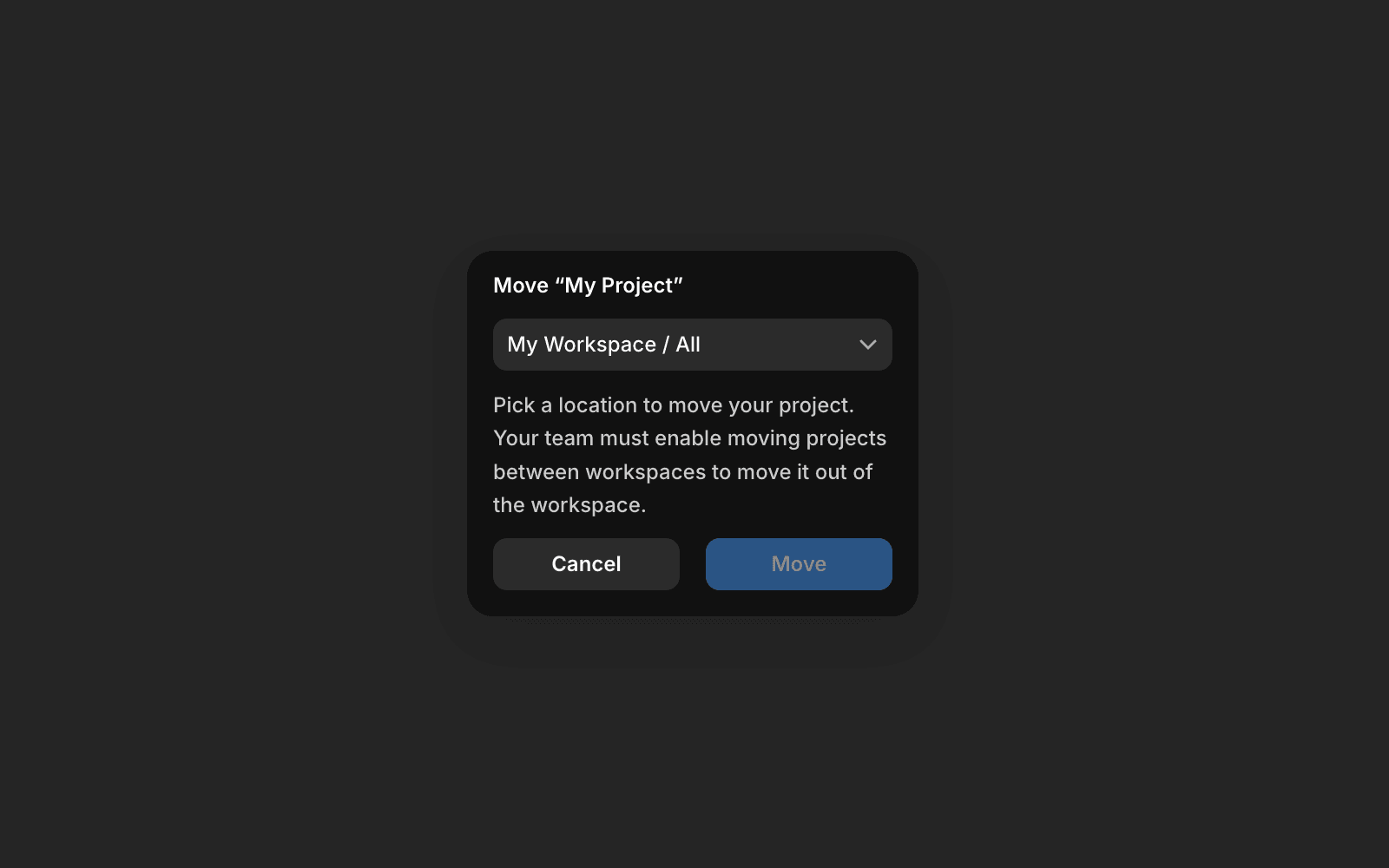
A pop-up will appear, allowing you to choose the target workspace.
Select the correct workspace and click “Move”.
Please note that projects with active site subscriptions can be moved, but the attached subscription will be canceled and the unused time under that paid subscription will be stored as credit into your account so it can be used on future invoices within the same workspace. If you need help or encounter any issues, contact Framer’s support team through our contact page.
How do I move a project to a different workspace in Framer?
To move a project to a different workspace, go to the Dashboard and locate the project you want to move. Click the three-dot icon next to the project name, then select 'Move' from the dropdown menu. A pop-up will appear where you can choose the target workspace. Select the correct workspace and click 'Move' to complete the process.
What happens to my site subscription if I move a project to another workspace?
If your project has an active site subscription, moving it will cancel the attached subscription. The unused time under that paid subscription will be stored as credit in your account, which can be used on future invoices within the same workspace.
What should I do if I encounter issues moving a project between workspaces?
If you need help or encounter any issues while moving a project between workspaces, you should contact Framer's support team through their contact page at https://www.framer.com/contact/.
Updated