Live collaboration in Framer
Framer enables your entire team to collaborate on the canvas in real-time, designing pages together seamlessly.
Identifying collaborators
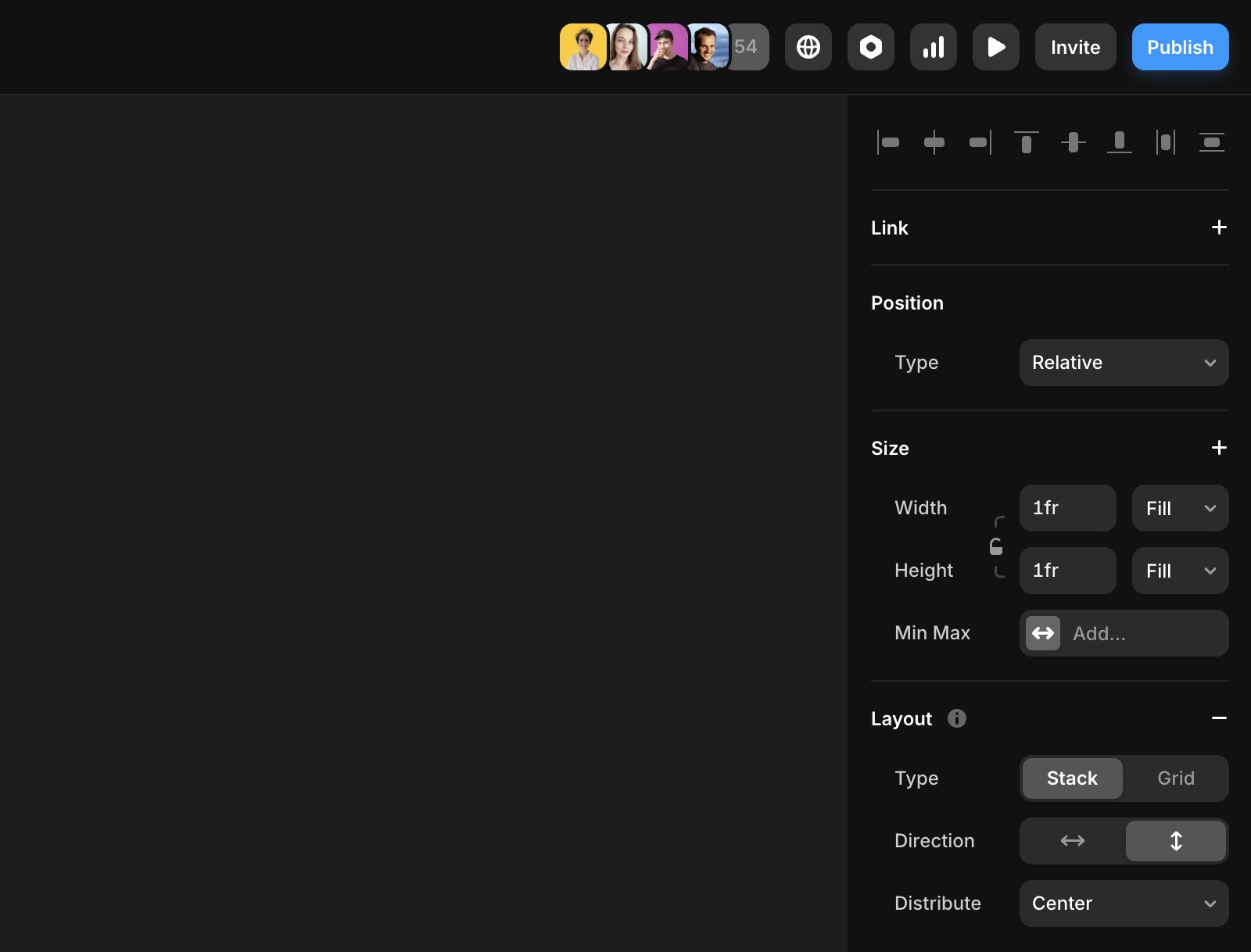
In the top-right corner of the app, you’ll see profile photos of everyone who has accessed the project.
Colored profile photos: These users are actively viewing the project.
Greyed-out profile photos: These users have previously viewed the project.
Hover over any profile photo to see when they last accessed the project.
Inviting collaborators to a project
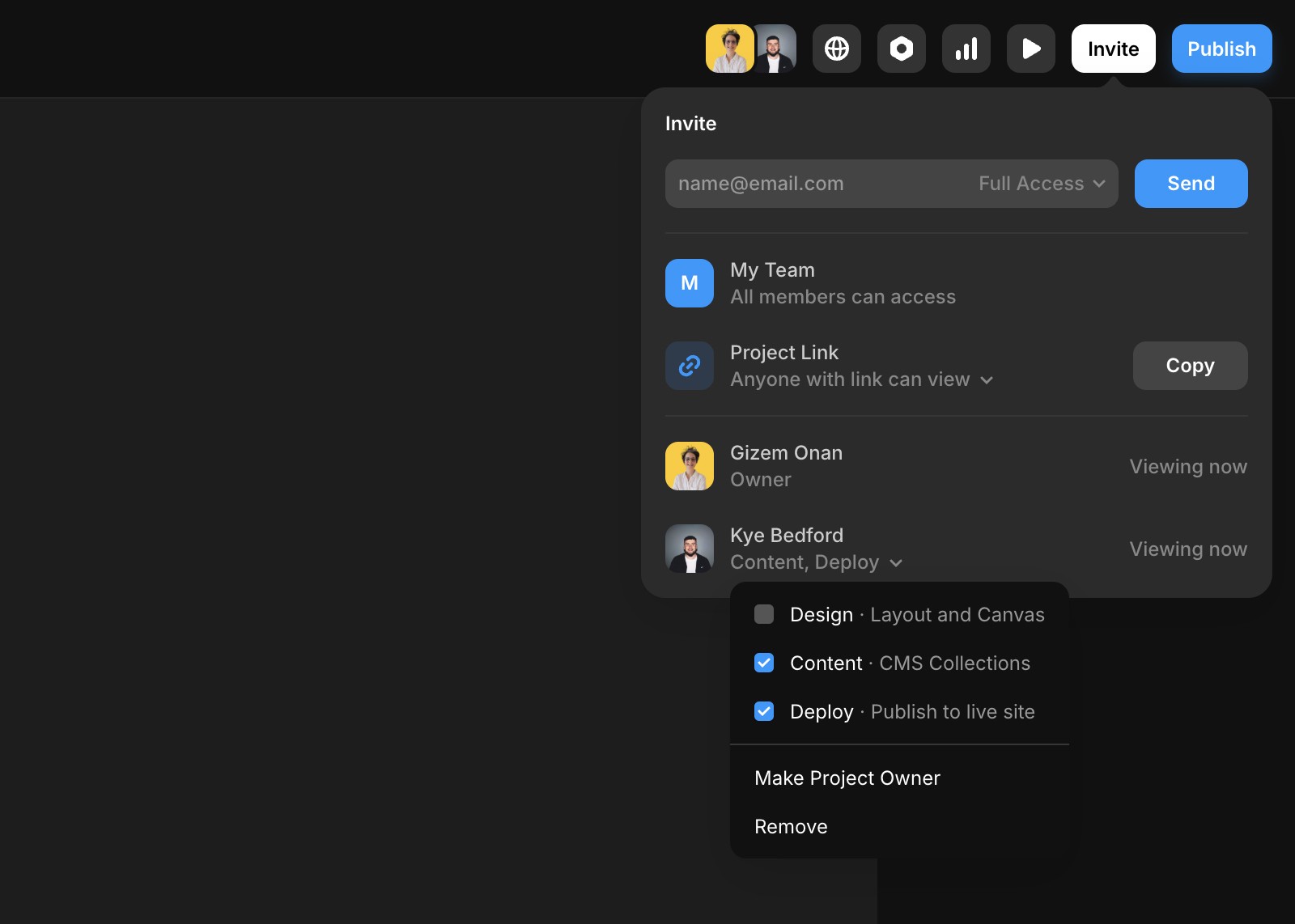
Open the invite sheet:
Click your personal profile photo in the top-right corner.
Invite collaborators:
Enter their email addresses to send invitations.
Manage permissions:
Adjust individual viewing and editing rights based on your Workspace plan.
Learn more about member roles and permissions.
Cursor chat
When multiple people are viewing the same page, their cursors will appear on the canvas.
How to chat:
Press
/and start typing your message.Your message will appear in your cursor, visible to others as long as your cursor is in their view.
This is a quick and easy way to communicate while collaborating.
Observing collaborators
If someone is currently in the project, you can observe their activity:
Hover over their profile photo.
Click the eye icon.
Your canvas will automatically jump to the location they are viewing.
How can I identify who is currently viewing or has accessed my Framer project?
In the top-right corner of the app, you’ll see profile photos of everyone who has accessed the project. Colored profile photos indicate users who are actively viewing the project, while greyed-out profile photos show users who have previously viewed it. You can hover over any profile photo to see when they last accessed the project.
What is the process for inviting collaborators to a Framer project?
To invite collaborators, click your personal profile photo in the top-right corner to open the invite sheet. Enter their email addresses to send invitations. You can also adjust individual viewing and editing rights based on your Workspace plan.
How does cursor chat work during live collaboration in Framer?
When multiple people are viewing the same page, their cursors will appear on the canvas. To chat, press '/' and start typing your message. Your message will appear in your cursor and is visible to others as long as your cursor is in their view.
Updated