Leave a workspace
Learn how to remove yourself from a workspace you no longer need access to.
If you were invited to a workspace by mistake or no longer need access, you can leave the workspace at any time.
Leave a workspace
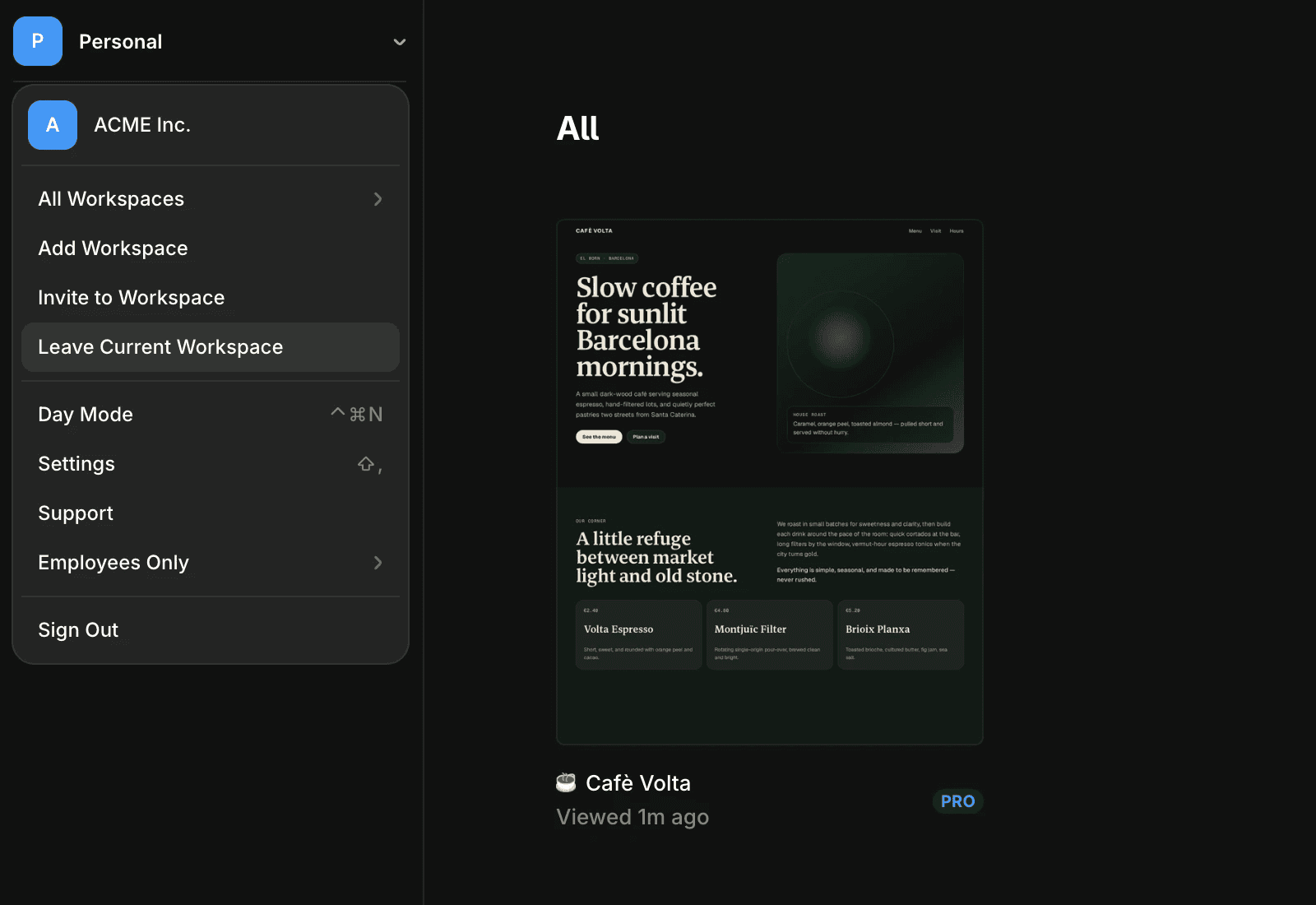
To leave a workspace:
Open the Dashboard.
Select the workspace you want to leave.
Click Leave Current Workspace.
Click Leave to confirm.
Once you leave, you’ll immediately lose access to the workspace and its projects.
Regain access to a workspace
After leaving a workspace, you’ll need a new invitation from a workspace admin to regain access. You cannot rejoin a workspace on your own unless you’ve been invited again.
When you can’t leave a workspace
You cannot leave a workspace if you’re the only admin. In this situation, you can either:
Assign another member as an admin before leaving.
Delete the workspace if it’s no longer needed.
FAQ
How do I leave a workspace in Framer?
To leave a workspace, select the workspace you want to leave from the dashboard menu, click 'Leave Current Workspace', and then confirm by clicking 'Leave' in the pop-up that appears.
What happens after I leave a workspace?
Once you click 'Leave', you will be removed from the workspace. To regain access, you’ll need another invitation from an admin of the workspace.
Can I leave a workspace if I am the only admin?
You can’t leave a workspace when you are the only admin. In that case, you should delete your workspace instead.
Updated
