How to add a scroll-to-top button to your website
How to add a scroll-to-top button in Framer to improve navigation on your website.
Navigation bar with relative, absolute, or sticky positioning
Add your button:
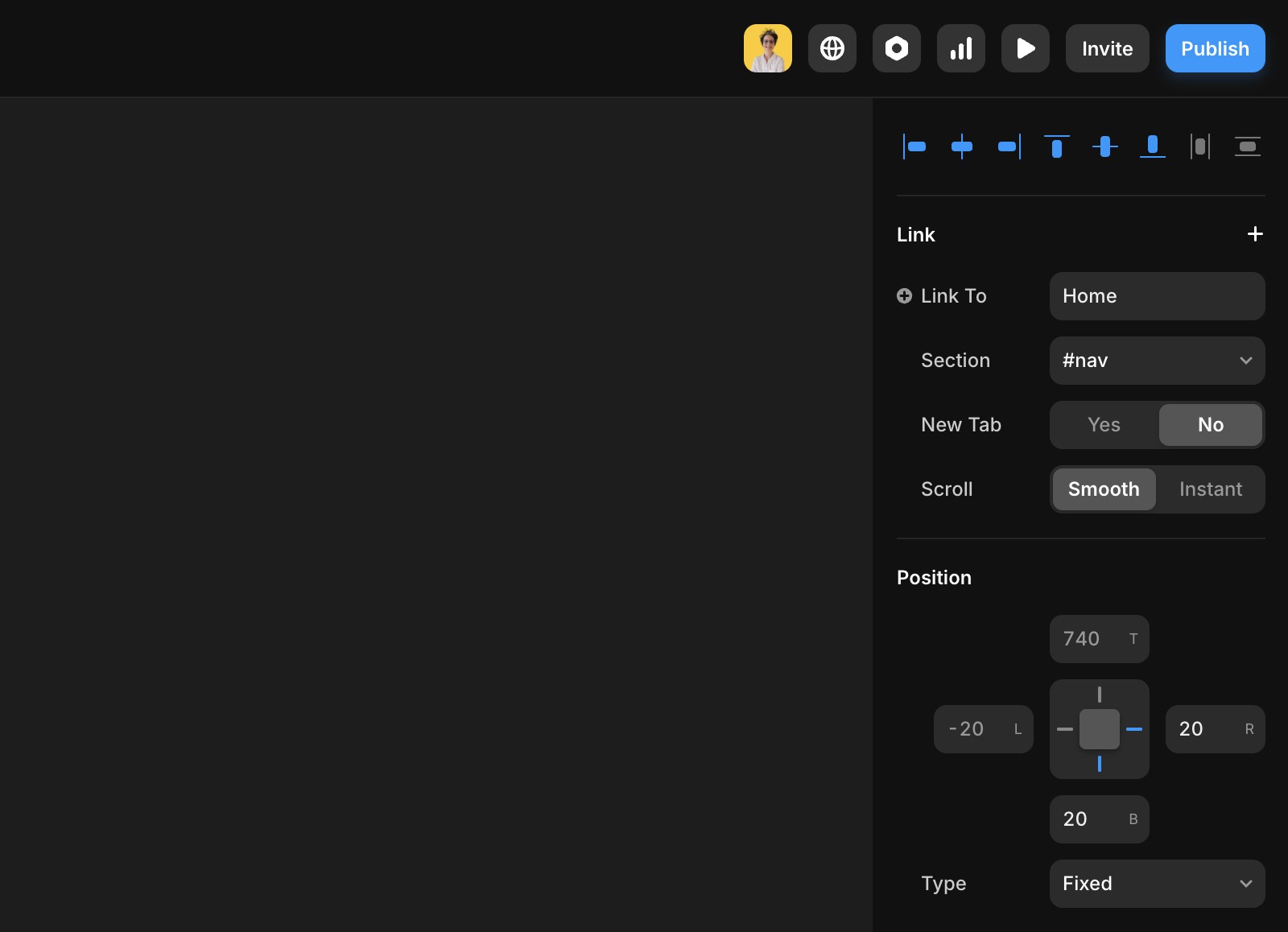
Place your icon in the desired position. In this demo, the button is fixed at the bottom, pinned to the bottom right.

2. Create a scroll section:
Select your navigation bar.
In the right panel, click the + icon next to Scroll Section and name the section.

Link the button:
Select the scroll-to-top button.
Click the + next to Link in the right panel.
Choose the page and section you named in the previous step.
Additional resources
For a hands-on example, you can remix this project.
If you're still experiencing issues, please reach out to us through our contact page for further help.
How do I add a scroll-to-top button to my Framer website?
To add a scroll-to-top button, first place your icon in the desired position—such as fixed at the bottom right. Then, select your navigation bar and, in the right panel, click the + icon next to Scroll Section to create and name a section. Next, select the scroll-to-top button, click the + next to Link in the right panel, and choose the page and section you named. This will link the button to the top of your page.
How can I position my scroll-to-top button so it stays visible while scrolling?
You can fix your button's position by placing your icon in the desired spot and setting it to fixed at the bottom, pinned to the bottom right. This ensures the button remains visible as users scroll through your website.
Where can I find an example project or get further help if I have issues?
For a hands-on example, you can remix the provided project at https://framer.com/projects/new?duplicate=czHwvRVB8nBMhArsG79w. If you're still experiencing issues, please reach out through the Framer contact page for further help.
Updated