Add another CMS collection to a CMS detail page
Learn how to add and customize additional CMS collections on a CMS detail page to display related content and connected data.
Add multiple CMS collections to a CMS detail page to show related content, image galleries, featured items, or other connected CMS data.
Add a CMS collection to a detail page
You can place additional CMS collections on a detail page to display dynamic content alongside the page’s primary CMS item.
Open the Insert menu.
Scroll to the Collection Lists section.
Drag the collection you want to add onto the canvas.
Drop the collection in the desired location on the detail page.
Select the collection on the canvas.
Customize its layout, spacing, styling, and other visual properties from the right sidebar.
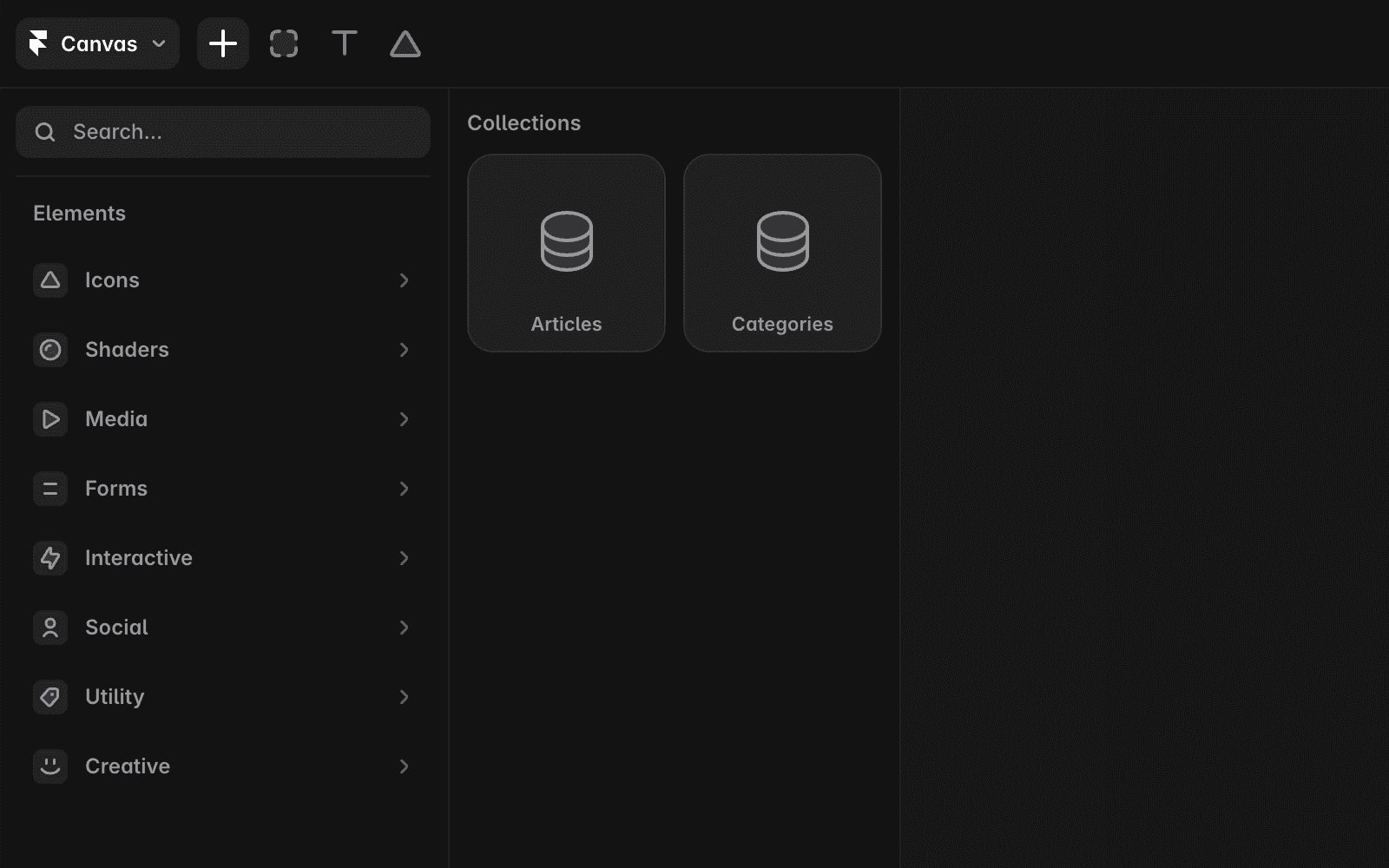
When added to the page, the collection appears as a special stack connected to your CMS data. You can style and arrange it like any other stack while keeping its content dynamically linked to your CMS collection.
Customize the collection
After adding a collection, you can adjust its appearance to match your site design.
You can customize:
Layout and alignment
Spacing and padding
Styling and visual effects
Item presentation and structure
Changes you make affect how the collection is displayed while preserving its connection to the CMS data source.
FAQ
Can I add more than one CMS collection to a detail page?
Yes. You can add multiple CMS collections to the same detail page to display different types of related or connected content.
Will adding another CMS collection affect the page’s main CMS content?
No. Additional CMS collections are separate from the page’s primary CMS content and can be configured independently.
Can I style a CMS collection like a regular stack?
Yes. Once added, a CMS collection can be customized using many of the same layout and visual settings available for regular stacks.
Updated
