Add another CMS collection in a CMS detail page
Learn how to add and customize CMS collections in Framer detail pages.
You can add multiple CMS collections to a detail page to display related content, galleries, or other connected data.
Adding a CMS collection to a page
A CMS collection lets you display dynamic content linked to your CMS data. Here’s how to add one to a detail page.
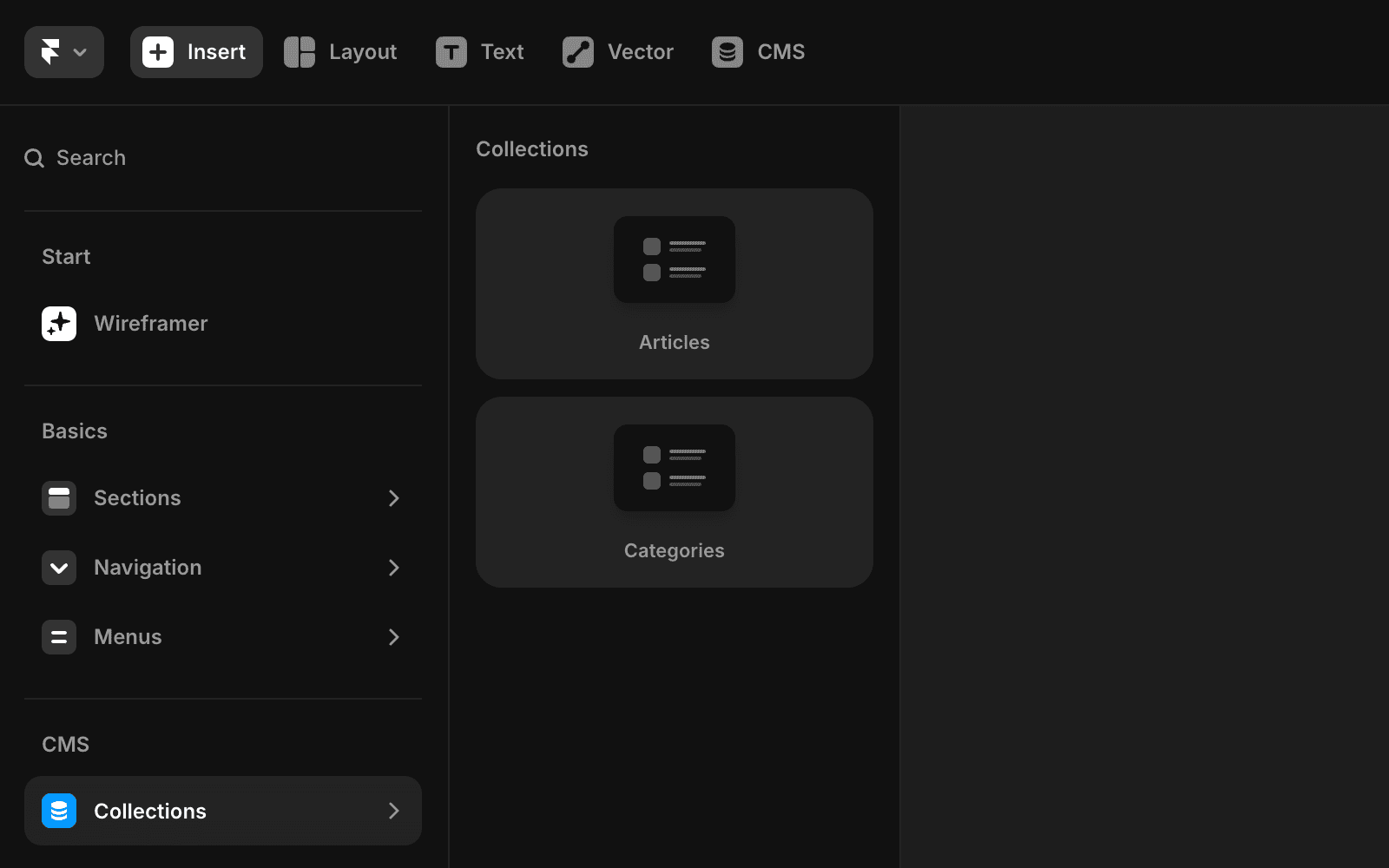
Open the Insert menu and scroll to the Collection Lists section.
Drag and drop your desired collection onto the canvas. This will add a special stack with layers connected to your data.
Select the collection on the canvas and adjust its visual properties in the right-side panel, just like a regular stack.
How can I add another CMS collection to a detail page in Framer?
Open the Insert menu and scroll to the Collection Lists section. Drag and drop your desired collection onto the canvas. This will add a special stack with layers connected to your data.
Can I display multiple CMS collections on a single detail page?
Yes, you can add multiple CMS collections to a detail page to display related content, galleries, or other connected data.
How do I customize the appearance of a CMS collection after adding it to my page?
Select the collection on the canvas and adjust its visual properties in the right-side panel, just like a regular stack.
Updated