How videos are optimized in Framer
Framer optimizes how videos are loaded to ensure websites remain fast. However, we currently do not alter or optimize the video file itself in any way.
Loading Optimizations
Rendering videos can strain mobile devices. Delaying video playback makes websites more battery- and data-friendly for your users.
To enable our optimizations:
Ensure every video has a poster. This also improves SEO.
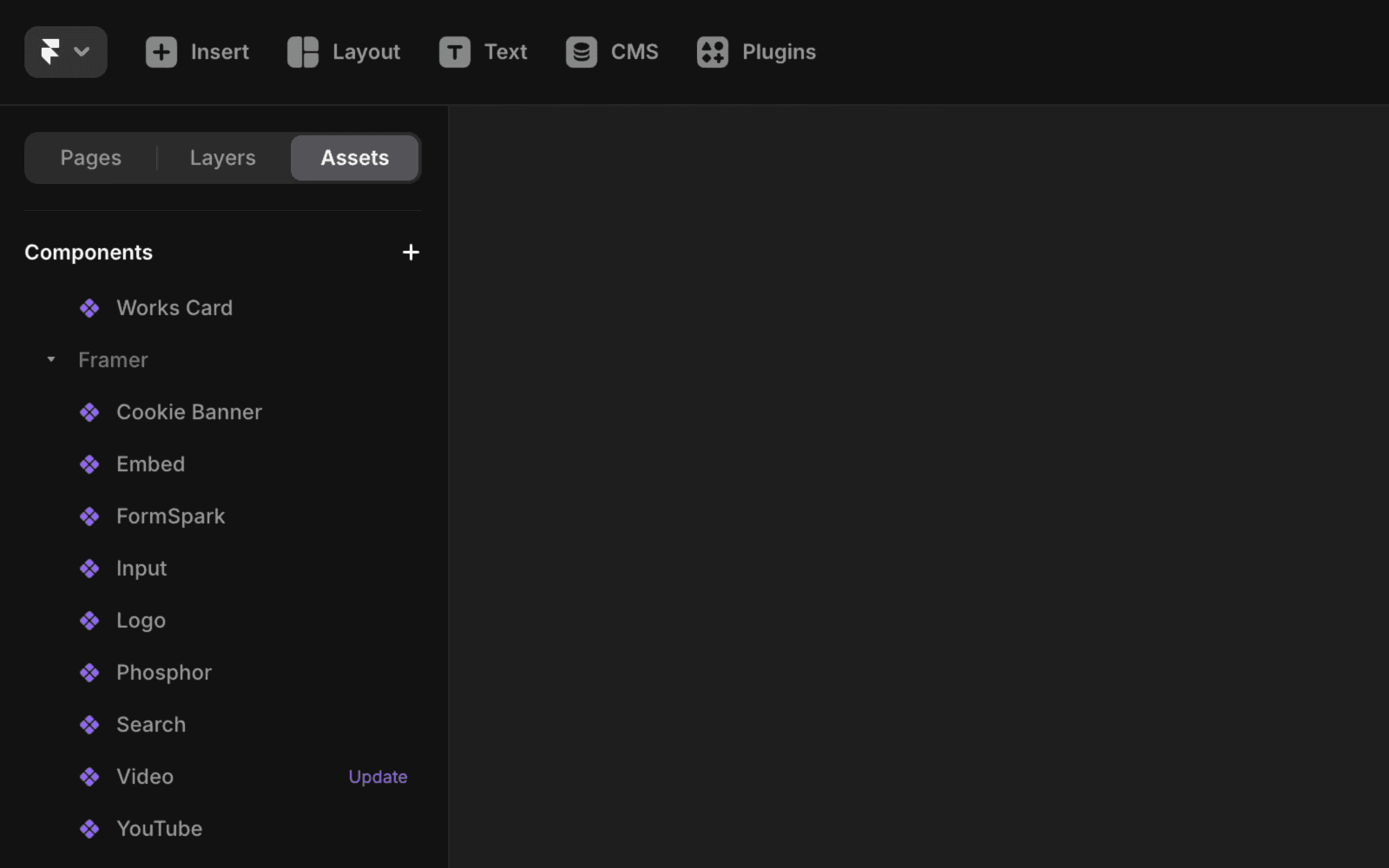
Keep the “Video” component updated in the “Assets” tab under Components in Framer.
Our optimizations include:
Lazy loading for videos with posters. Videos are only loaded when close to the viewport, ensuring faster initial load times. For example, a video further down the page loads only when the user is about to see it.
Paused playback for out-of-viewport “GIF-like” videos. Muted, looping, auto-playing videos without controls (essentially acting as GIFs) pause when out of view.
This applies to video components with these props: “Muted: Yes” + “Loop: Yes” + “Playing: Yes” + “Controls: Hide.”
How to optimize the video file

Optimize your video content before uploading. Uploaded videos remain unaltered, so a 4K video will be served in full resolution, even on small screens.
For adaptive quality based on user screen or network speed, use YouTube or Vimeo components (Insert → “YouTube” or “Vimeo”).
To compress videos, try tools like ffmpeg (web version) or Handbrake with “Web Optimized” settings.
Choose a well-supported file format and codec. For example, the AV1 codec is not supported on some older iOS or Mac versions. The H.264 codec with the “.mp4” file extension is universally supported across browsers.
For advanced users: When using ffmpeg, include the flag
movflags +faststartto allow videos to play faster in browsers.
Note: Keep looping videos under 5 MB in size. Most browsers have a 5–8 MB caching limit for media files, meaning larger videos won’t stay cached and will be re-downloaded each time they play, increasing bandwidth usage.
Why Framer does not optimize the video file
Video optimization is complex and costly. To do it effectively, we’d need to build infrastructure similar to YouTube or Vimeo from scratch. Instead, we focus on what we do best: helping you create exceptional websites.
Still experiencing the issue after following the steps above? Feel free to reach out to us through our contact page for further help.
How does Framer optimize video loading and playback on websites?
Framer uses several optimizations to improve video performance. Videos with posters are lazy loaded, meaning they are only loaded when close to the viewport, which ensures faster initial load times. Additionally, muted, looping, auto-playing videos without controls (acting as GIFs) are paused when out of view. This helps make websites more battery- and data-friendly, especially on mobile devices.
What steps should I take to ensure my videos are optimized in Framer?
To enable Framer's video optimizations, make sure every video has a poster, which also improves SEO. Keep the 'Video' component updated in the 'Assets' tab under Components in Framer. For best results, optimize your video content before uploading, as Framer serves uploaded videos as-is. Use well-supported formats like H.264 with the '.mp4' extension, and consider compressing videos with tools like ffmpeg or Handbrake using 'Web Optimized' settings.
Does Framer automatically compress or adapt video quality for different devices?
No, Framer does not automatically compress or adapt the quality of uploaded videos. Uploaded videos remain unaltered, so a 4K video will be served in full resolution even on small screens. For adaptive quality based on user screen or network speed, use YouTube or Vimeo components. If you need to compress videos, use external tools before uploading.
Updated