Filter items in Localization
Learn how to quickly locate pages, components, and CMS content using filters in the Localization view.
When a project contains a large amount of content, scrolling through the Localization view can be slow. Filters help you narrow down what you need to translate so you can work more efficiently.
How to filter content in the Localization view
To begin, open the Localization view by clicking the globe icon in the top-right corner.
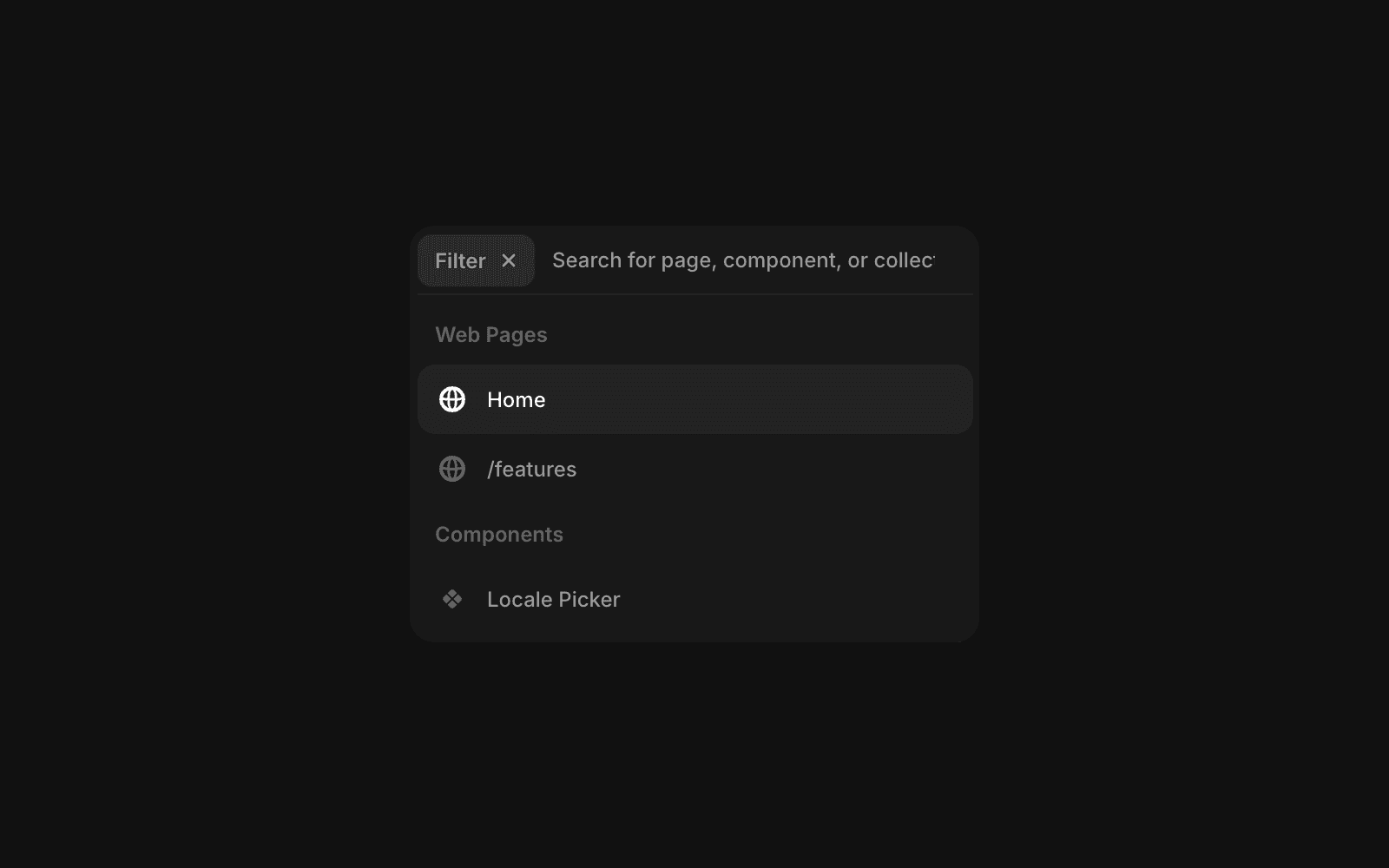
Once the view opens, look toward the top navigation bar and select Filter. A module will appear, giving you options to narrow your results by page, component, CMS collection, or CMS item.
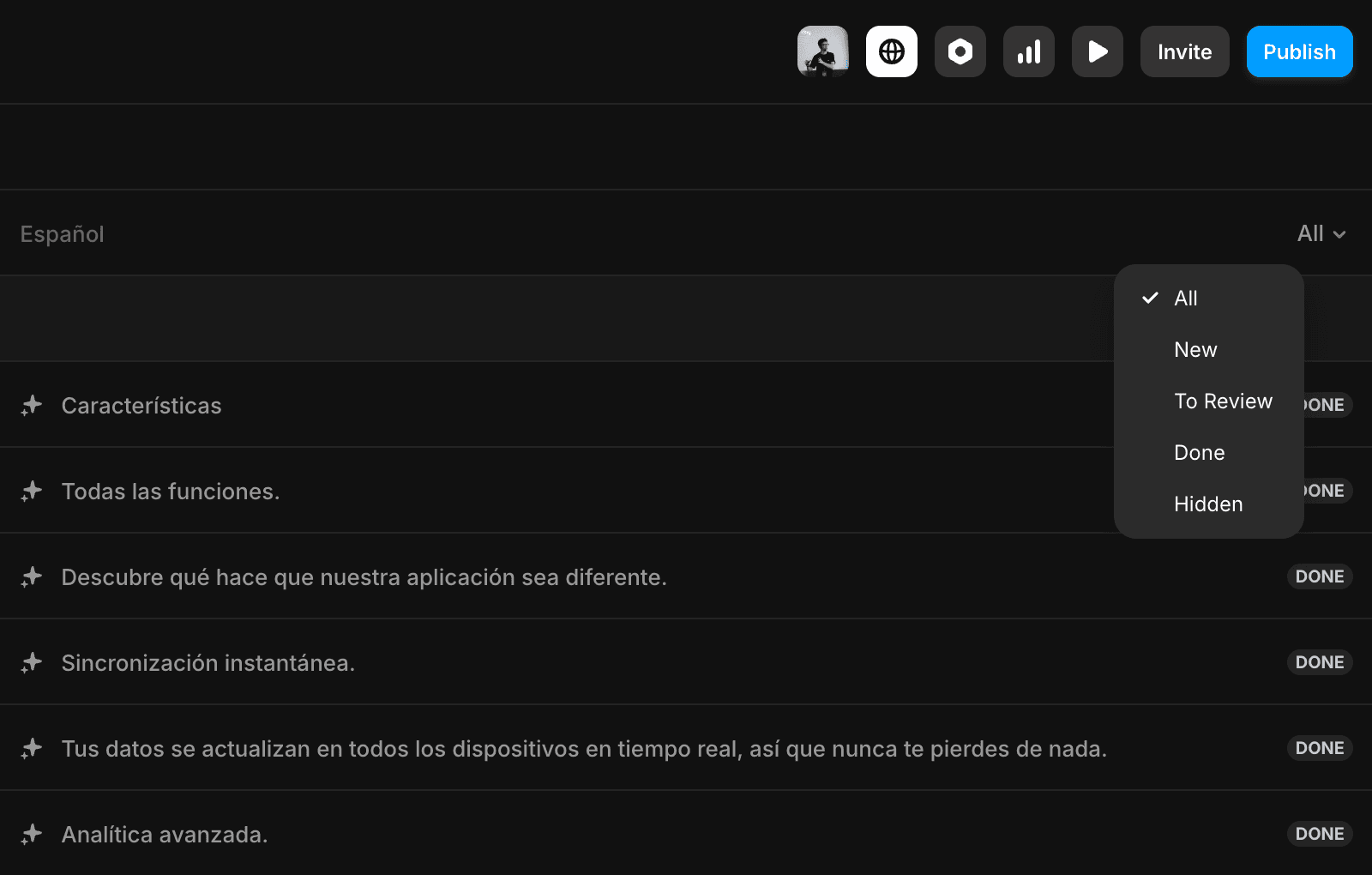
As you work through translations, you can also filter by status. In the rightmost column, click the status filter—set to “All” by default—to refine your list to Done, To review, or New items.
Using these filters makes the translation workflow smoother and far more efficient, helping you quickly find and manage the content that matters most.
How do I access the Localization view in Framer?
Click the globe icon in the top right corner to enter the Localization view.
How can I filter content by page, component, or CMS item in the Localization view?
Click Filter in the top navigation bar. A module will appear, allowing you to filter by page, component, CMS collection, or CMS item.
Is it possible to filter content based on translation status in Framer's Localization view?
Yes, you can filter content based on translation status (e.g., Done, To Review, New) by clicking the filter in the rightmost column, which defaults to 'All,' to refine your selection.
Updated