Checking the total and billed editors in your workspace
Understanding the number of editors in your workspace is crucial for effectively managing your workspace and invoices.
To check the total and billed editors in your workspace, follow these steps:
Open the Dashboard.
Click “Settings” in the left sidebar to access your workspace settings.
Go to the “Members” tab.
In the Members tab, the total number of editors is shown above the member list.
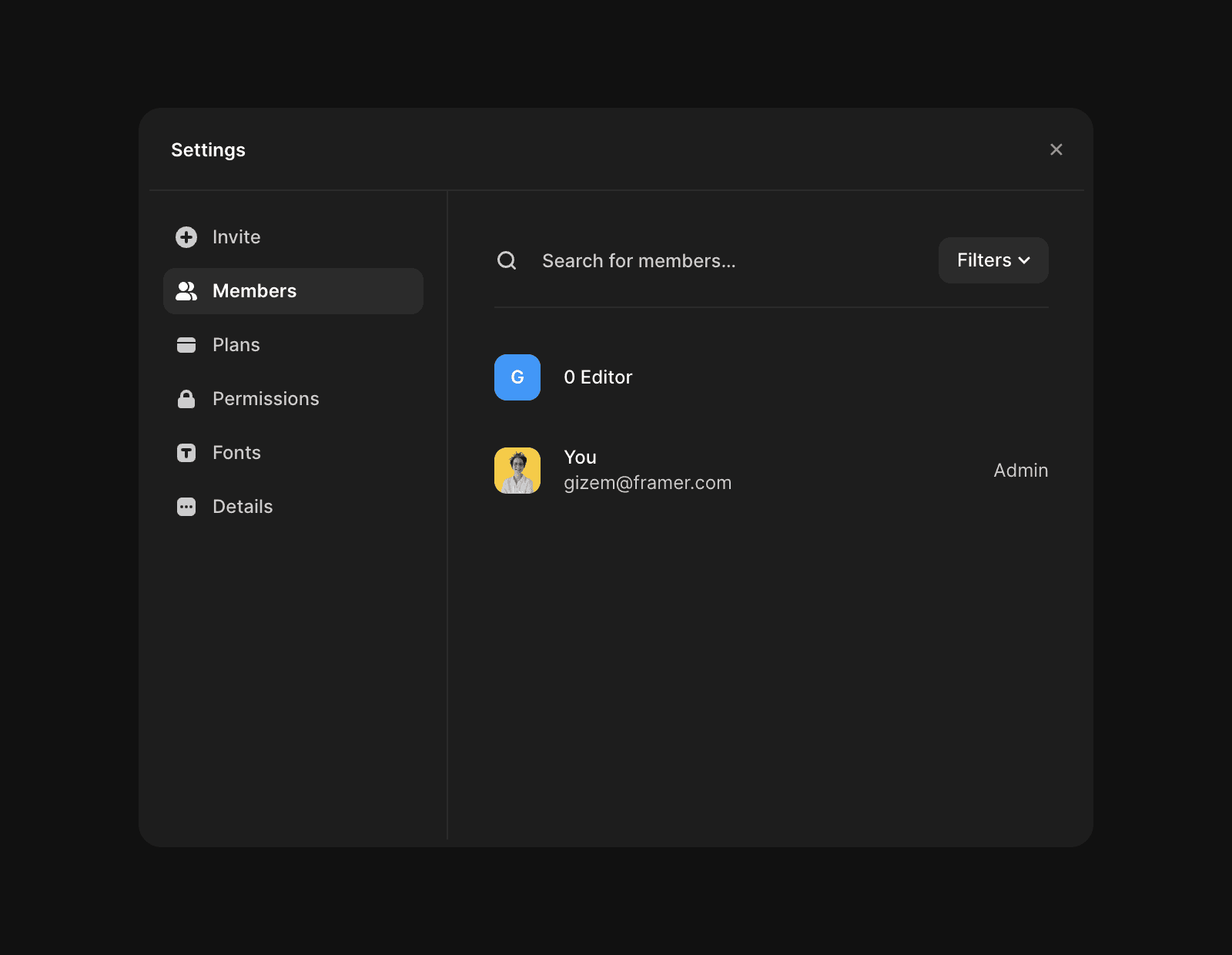
The first admin in your workspace is always free and counts as your first editor. To calculate the number of billed editors, subtract one from the total number of editors. Keep in mind that admins are considered editors since they have editing permissions. If you’d like to remove or downgrade an editor, follow the steps described here.
How can I check the total number of editors in my Framer workspace?
To check the total number of editors in your workspace, open the Dashboard, click 'Settings' in the left sidebar to access your workspace settings, and go to the 'Members' tab. The total number of editors is shown above the member list.
How do I determine how many billed editors I have in my workspace?
The first admin in your workspace is always free and counts as your first editor. To calculate the number of billed editors, subtract one from the total number of editors. Admins are considered editors since they have editing permissions.
What steps should I follow to remove or downgrade an editor in my workspace?
If you’d like to remove or downgrade an editor, follow the steps described in the workspace settings under the 'Members' tab. Detailed instructions can be found by following the link provided in the Members tab to the relevant help article.
Updated