
Justin
6:55
Use the Loop Effect in Framer
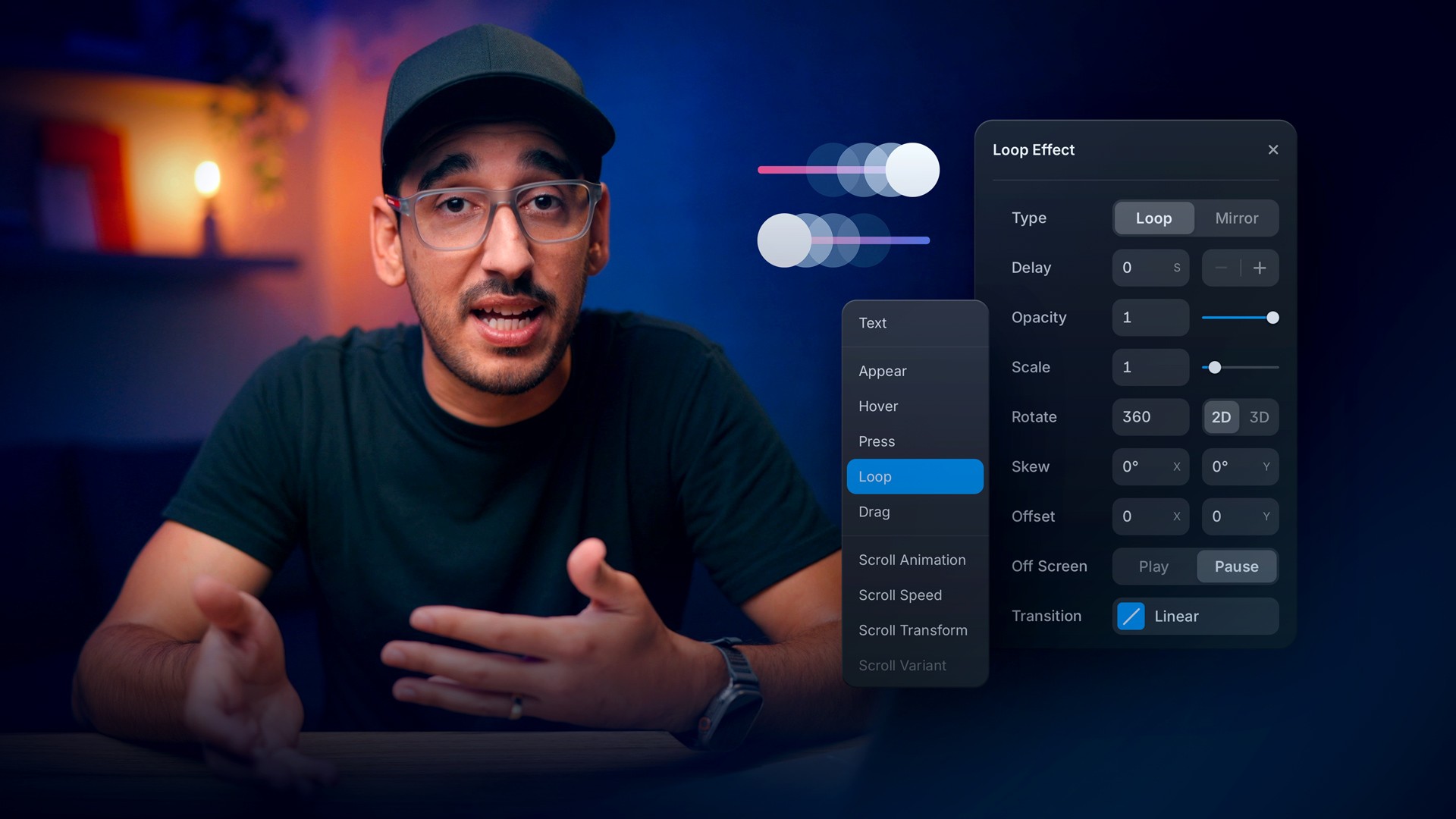
Learn how to use the Loop Effect in Framer. Sometimes, animation doesn’t need a trigger, it just needs rhythm and flow. You will configure the relevant effect, trigger, and transition, then preview the interaction across breakpoints. Test the timing and final state before you use the interaction on your site in Framer.
Lesson details
Apply the Loop Effect and choose the property that repeats, such as rotation, position, scale, or opacity. Set the duration, direction, repeat behavior, and easing, then preview the point where the end returns to the beginning.
A clean loop needs compatible start and end states. Keep the motion subtle around text or controls, and pause or simplify decorative loops when they consume attention or affect page performance.
Preview the effect as part of the full page sequence. Timing that feels right in isolation can become slow or noisy when several sections animate during the same scroll.
Frequently asked questions
How do I use the Loop Effect in Framer?
Learn how to use the Loop Effect in Framer. Sometimes, animation doesn’t need a trigger, it just needs rhythm and flow. You will configure the relevant effect, trigger, and transition, then preview the interaction across breakpoints. Test the timing and final state before you use the interaction on your site in Framer.
What does this lesson cover?
The lesson covers the settings and steps used to use the Loop Effect in Framer. See Spring Animation. Follow the demonstrated order in your project and review each change on the canvas before moving to the next step.
Which animation settings should I test in Framer?
Test the trigger, start and end states, timing, easing, and replay behavior used in the lesson. Preview the interaction at different viewport sizes and confirm that it supports the page hierarchy. Reduce or remove motion that distracts from content or makes controls harder to use.
Can I use this animation on a responsive site in Framer?
Yes. Preview the effect at every affected breakpoint and resize between them. Check trigger positions, clipping, motion distance, and the start and end states at narrow widths. Adjust the layout or effect when the animation obscures content or moves an interactive element away from its expected position.
What should I review after I use the Loop Effect in Framer?
Review the exact pages and elements changed by the workflow. Confirm that copy, links, accessibility, responsive behavior, and interaction states still work as intended. Use preview for the final check and keep publishing separate from editing so you can fix problems before visitors see the update.